Written by: Mariana Fonseca, Editorial Team, AI Growth Agent
Key Takeaways
- ChatGPT uses the word “client” in four distinct ways, so the correct fix depends on which meaning applies to your situation.
- Custom GPTs and MCP clients disappear when sharing settings, workspace policies, or account eligibility blocks visibility.
- Third-party app integrations vanish due to plan limits, admin approval requirements, OAuth failures, or workspace configuration issues.
- Desktop or mobile app clients fail to load chats, projects, or interface elements because of updates, browser extensions, or server-side incidents.
- When a client’s brand is missing from ChatGPT answers, the problem involves content visibility, and AI Growth Agent addresses that gap.
Book A Demo With AI Growth Agent
Why Your Client Isn’t Showing Up In ChatGPT: The Four Meanings Of Client
Clarify which meaning of “client” applies before you troubleshoot anything:
- A Custom GPT Or MCP Client You Built Or Connected. A GPT you created in the ChatGPT builder, or a Model Context Protocol client you connected to your workspace.
- A Third-Party App Integration Connected To ChatGPT. An external service such as Slack, GitHub, Google Drive, or Notion that you connected through ChatGPT’s Apps or Plugins interface.
- The ChatGPT Desktop Or Mobile App Client Itself. The installed application on Windows, macOS, iOS, or Android that is failing to load, display chats, or show interface elements.
- A Client’s Brand Or Business Name That Is Not Appearing In ChatGPT Answers. A company whose name, products, or services are absent from AI-generated responses, even when customers ask directly relevant questions.
“ChatGPT client” and “ChatGPT app” often mean the installed desktop or mobile application. In workspace contexts, “client” can also refer to a connected integration or a custom GPT, and that definition changes the fix path.
| Meaning Of “Client” | What It Refers To | Primary Fix Path |
|---|---|---|
| Custom GPT or MCP client | A GPT you built or an MCP client you connected | Publish status, sharing settings, workspace visibility |
| Third-party app integration | An app like Slack, GitHub, or Google Drive connected to ChatGPT | Settings to Apps, reconnection, OAuth completion |
| Desktop or mobile app client | The ChatGPT desktop or mobile application itself | Update, restart, zoom and extension fixes |
| Client’s brand or business name | A client’s brand not appearing in ChatGPT answers | Content and narrative visibility work |
Fix Path One: Your Custom GPT Or MCP Client Is Not Appearing
Missing GPTs usually trace back to account eligibility, sharing configuration, workspace policy, or a conflict between apps and actions.
Start with account eligibility. OpenAI’s “Troubleshooting GPTs” documentation states that personal ChatGPT accounts, including Free, Go, Plus, and Pro, cannot create or publish new GPTs. This restriction comes from account type rather than a technical error, and profile changes or appeals do not override it.
If the cause of a missing GPT is unclear, OpenAI’s documentation recommends a five-step diagnostic:
- Test the GPT in Preview to confirm it functions independently of sharing or workspace settings.
- Confirm which capabilities, Apps, or Actions are enabled for the GPT.
- Check how the GPT is shared: with specific people, within the workspace, by link, or published to the GPT Store.
- Review workspace settings and role permissions in managed workspaces, where admins can disable apps for workspace-created GPTs and restrict which domains GPT actions can use.
- Check the related sharing or admin article if an otherwise available publishing option is blocked.
Apps and actions follow separate integration paths, and one GPT cannot use both at the same time. A GPT with actions already configured cannot use apps. If a GPT uses apps, that configuration blocks public link sharing and GPT Store publishing. Public actions also require a valid Privacy Policy URL and a completed Builder Profile.
OpenAI plans to retire custom GPTs in favor of Plugins, with retirement planned for December 11, 2026 for affected Enterprise workspaces and a migration experience targeted for September 17, 2026. Enterprise teams should treat GPT migration planning as time-sensitive.
Fix Path Two: Your Third-Party App Integration Is Not Showing
ChatGPT supports app integrations with services including Slack, GitHub, Google Drive, SharePoint, Microsoft Teams, Outlook, GitLab, Box, and Notion. When one of these disappears or fails to connect, the cause usually falls into a specific availability state, and each state calls for a different response.
OpenAI’s “Troubleshooting apps in ChatGPT” documentation lists common availability messages and what to do next:
- “Not available on your plan” – check plan requirements for the app.
- “Admin approval required” – ask a workspace administrator to review the plugin and its included app. This message does not confirm that a request was already submitted.
- “Requires workspace setup” – ask an administrator to configure the app.
- “Requires a workspace” – switch to an eligible managed workspace.
- “Synced by admin” – the app may be available through an administrator-managed sync connection.
- “Desktop only” or “Open in desktop app” – use the supported desktop experience.
An app can appear as “Connected” without being available in the current chat, model, or ChatGPT surface. OpenAI’s “Connected apps in ChatGPT” documentation instructs users to confirm the intended workspace and connected provider account, review the app’s availability and requirements for the selected model and surface, and then start a new chat.
For OAuth and authorization failures, OpenAI’s troubleshooting documentation specifies that if an app shows “All permissions are required,” select Reconnect and approve every permission required for the selected apps. If you see “ChatGPT needs all requested permissions” when connecting Google apps, select “Try again,” then select “Select all” on Google’s authorization screen. To connect fewer Google apps, select “Select fewer apps” in ChatGPT, while still approving every requested permission for the chosen apps.
For GitHub specifically, OpenAI’s GitHub connection documentation notes that newly connected repositories generally take about five minutes to appear. A private or newly created repository may not appear until the GitHub app is installed for the correct account or organization and has access to that repository. Installing the GitHub app and granting it repository access occur as separate steps.
Fix Path Three: Your Desktop Or Mobile App Client Is Missing
When the ChatGPT application itself misbehaves, you may see a blank sidebar, missing interface elements, or chats that refuse to load. The subsections below walk through the most common failures.
Restoring Agent Mode In ChatGPT
Agent mode often disappears when OpenAI toggles the feature server-side after performance issues. OpenAI community reports document Agent mode disappearing across Plus and Pro accounts, even when the local client works correctly.
- Check the chat composer’s plus (+) menu rather than the sidebar, since the Agent or Work option may still appear there.
- Try the @agent shortcut by typing @agent in the chat composer to surface the mode.
- Narrow the browser window to reveal the compact view, which can expose the option.
- Update the app to the latest version, then reinstall if the option still does not appear.
- Check OpenAI Status for an active incident, because Agent mode failures often coincide with broader service events.
Finding Missing Chats In ChatGPT
OpenAI’s “Finding your chats, projects, and files in ChatGPT” documentation outlines a clear checklist for missing chats.
- Confirm you are signed into the correct account and workspace.
- Use sidebar search with Ctrl+K (Windows) or Cmd+K (macOS) and search for a word or phrase from the conversation.
- Switch the search filter to All to include all content types.
- Check Archived chats. Archived conversations remain searchable even though they do not appear in regular chat history, and they also appear in Settings under Data controls.
- Check OpenAI Status for an active incident.
An older conversation that no longer appears in the sidebar may still exist. Deleted chats disappear from account view and sidebar search and cannot be recovered, while archived chats remain searchable.
Bringing Projects Back Into View In ChatGPT
Reported Projects disappearance issues fall into several patterns, and each step below rules out one of them.
- Confirm you are signed in first, since Projects require a ChatGPT account and a signed-out session hides them entirely.
- If you are signed in, refresh the page or restart the app to rule out a transient loading failure.
- If the desktop app is the affected surface, update it and then try the web version to see whether the problem is client-specific.
- Check whether the sidebar is collapsed, because the Projects option may sit behind a collapsed sidebar or a menu button on narrow windows or phones.
- Open a new conversation inside the project to confirm whether the project itself still loads.
- Check whether the problem affects one project or every project, since a single-project failure points to a different cause than a missing Projects list.
- Test without a VPN, proxy, or browser extension to eliminate local interference.
- Check the OpenAI status page for an active incident.
Community reports document Projects disappearing from the Windows desktop app after specific updates while remaining visible on iOS, which points to the desktop client’s sidebar index rather than the underlying account data.
Fixing Chats That Will Not Load In ChatGPT
- Check OpenAI service status for an active incident.
- Refresh the page.
- Disable VPNs and browser extensions.
- Try another browser or network.
- Clear site data and cookies specifically for openai.com and chatgpt.com.
Fix Path Four: Your Workspace Admin Disabled The Client
Workspace admin controls often explain “Disabled by admin” messages, which reflect permissions rather than technical failure. Only an administrator can change this state.
OpenAI’s “Admin controls, security, and compliance for plugins and apps” documentation draws a clear distinction between workspace types:
- In ChatGPT Enterprise and Edu workspaces, new plugins and apps are disabled by default, and administrators must explicitly enable them.
- In ChatGPT Business workspaces, apps are enabled by default, but administrators can change workspace-wide app availability.
OpenAI’s “Managing app permissions in ChatGPT” documentation distinguishes three separate app controls that are evaluated independently:
- Role access controls who can use an app.
- Actions controls what the app can do.
- Permissions controls when ChatGPT asks before using an app.
If an app shows “Disabled by admin,” an administrator should open Workspace settings, select Apps or Plugins as available, and review the app and its plugin. In Enterprise or Edu, the administrator should check role-based access. In Business, the administrator should confirm whether the app is enabled for the workspace. Plugins that include required apps inherit those apps’ role and action settings, so a member without access to a required app cannot use that app-backed capability.
Disabling an underlying app blocks the app-backed capability while leaving the plugin itself installed, and skills that do not depend on that app can remain available.
Wrong Account Or Workspace Signed In
Multi-account and multi-workspace confusion often looks like a missing client but usually reflects a navigation error. A connected app can still be absent from the current chat, model, or ChatGPT surface even when it shows as Connected in settings.
OpenAI’s guidance for this scenario recommends verifying the intended workspace and provider account, reviewing model and surface availability, trying different search terms, switching the search filter to All, checking Archived chats for conversations, and checking Library for files. Start a new chat after confirming the correct account and workspace are active.
The Bridge: When Your Client’s Brand Is Not Showing Up In ChatGPT Answers
The four fix paths above all address technical settings and permissions. A fifth scenario appears when every setting looks correct and the client still never appears in answers.
That scenario arises when a client’s brand is absent from ChatGPT answers even though customers ask directly relevant questions. This situation represents a different class of problem and requires a different fix.
AI surfaces read, cite, and act on whatever the model can find and trust, and that trust usually rests on third-party coverage rather than the brand’s own site. About 85% of brand mentions in AI search originate from third-party pages rather than brand-owned sites, and brands are 6.5x more likely to be cited through third-party sources than through their own website. Ranking on Google does not translate to appearing in AI-generated answers, because Google ranks pages based on signals like keywords and backlinks, while AI engines cite sources they trust based on different credibility signals. According to research by Profound Strategy, 94.7% of brands receive zero mentions in ChatGPT recommendations.
Brands disappear from ChatGPT answers when the content the models can find fails to validate their claims or cover the long-tail queries customers actually ask. About 36% of consumers have discovered a new product or brand through ChatGPT, which makes AI assistants a discovery channel comparable to organic social. ChatGPT reached 900 million weekly active users as of February 2026. The brands absent from those answers are missing from the conversation altogether, not merely ranked lower.
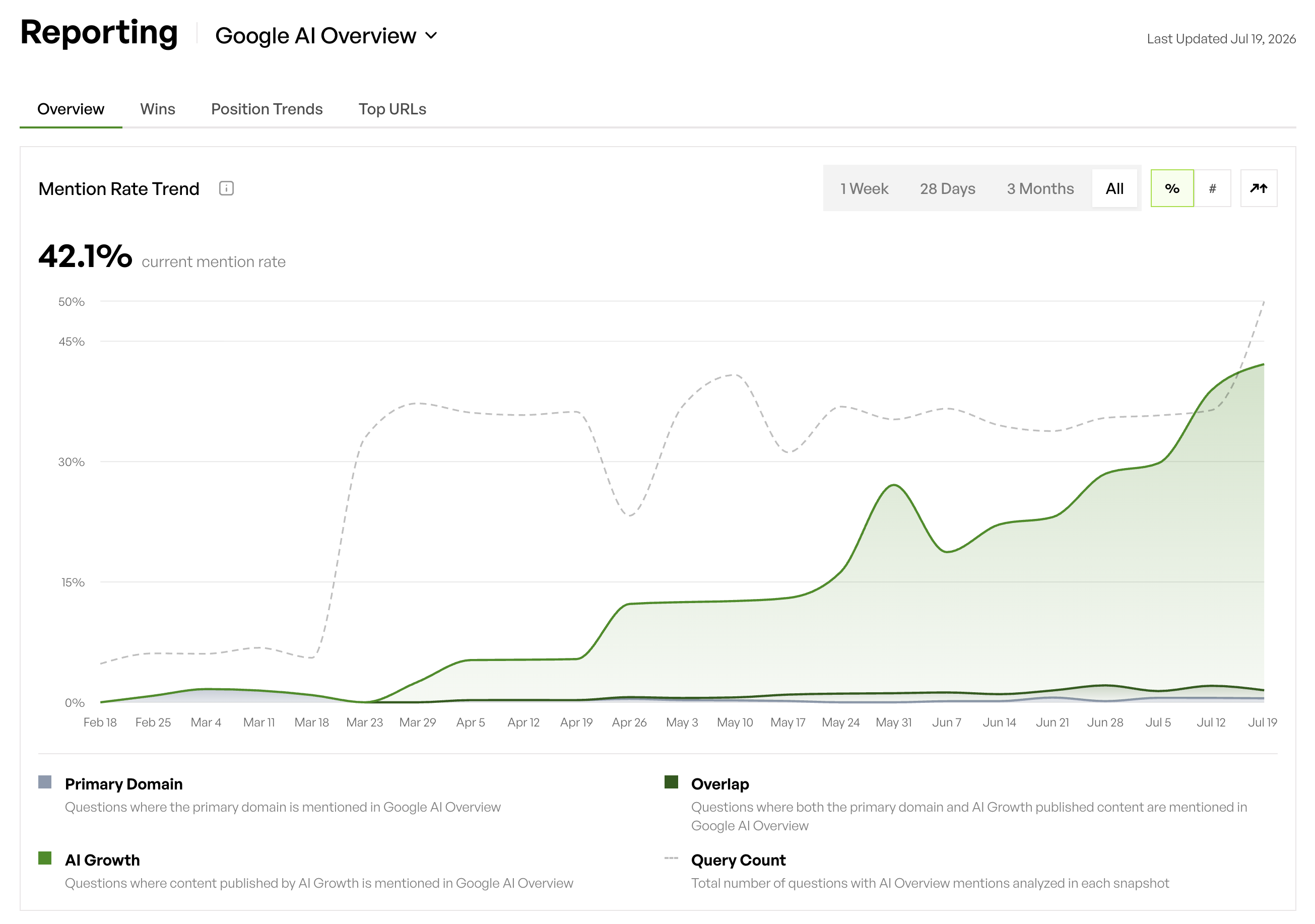
AI Growth Agent focuses on this brand-visibility path. It maps a client’s full universe of seed terms and long-tail queries from real-time Google and ChatGPT data. From there, it produces authoritative content that validates every claim and source, then stands up a fully tuned site the client owns within the first week. Finally, it reports the incremental visibility it generates week over week. Clients average more than 12,000 additional AI citations and mentions and over 100,000 additional bot visits across the first twelve weeks, with content indexing in as little as ten days.
The table below summarizes how the technical fix paths differ from the brand-visibility path across root cause, ownership, and time to resolution.
| Attribute | Technical Fix Paths | Brand-Visibility Path |
|---|---|---|
| Root cause | Settings, permissions, or app state | Content the models can find does not validate claims or cover long-tail queries |
| Who fixes it | The user or workspace admin | A content and narrative solution |
| Time to resolution | Minutes to days | Weeks to months |
| Primary solution | Settings changes, reconnection, or admin action | AI Growth Agent |
See How AI Growth Agent Gets Your Client Cited
Frequently Asked Questions
Why Does Agent Mode Keep Disappearing?
Agent mode usually disappears because OpenAI toggles it server-side or because the interface moves the control. The detailed recovery steps appear in the “Restoring Agent Mode In ChatGPT” section above, and the key insight is that the option often shifts into the composer’s plus menu instead of vanishing completely.
Why Do My Chats Seem To Vanish?
Most missing chats trace back to the wrong account or workspace, or to archived conversations that no longer appear in the sidebar. The “Finding Missing Chats In ChatGPT” section walks through the full checklist, including account verification, sidebar search, the All filter, and the Archived view.
Why Do Projects Appear In One Client But Not Another?
Projects often remain intact on the account while disappearing from a specific client, such as the Windows desktop app. The “Bringing Projects Back Into View In ChatGPT” section explains how to confirm sign-in state, test the web client, and rule out sidebar layout, VPNs, and extensions.
Why Do Chats Fail To Load Even When I Am Signed In?
Loading failures usually reflect service incidents or local network and browser issues. The “Fixing Chats That Will Not Load In ChatGPT” checklist covers status checks, refreshes, network changes, and targeted cookie clears for openai.com and chatgpt.com.
Get Your Brand Into ChatGPT Answers
Conclusion: The Fix Depends On Which Client You Mean
“Client” has four meanings inside ChatGPT, and each one points to a different fix path. The technical paths, covering custom GPTs, third-party app integrations, the desktop or mobile app itself, and admin-controlled workspace settings, all involve settings and permissions. The documentation links in each section above provide the authoritative starting points.
The brand-visibility path follows a different logic. As the bridge section explained, the brands absent from those answers are missing from the conversation altogether, rather than simply ranking lower. The brands that appear have content the models can find and trust across the long tail of queries customers actually ask.
AI Growth Agent exists for that visibility gap. Traditional search tools show where your brand stands. AI Growth Agent helps make your brand the answer.
Book A Demo And Make Your Brand The Answer